
Contents
 Folders
You can create any number of folders within your 3DMatrix model to create a more organized heirarchy of Polygon Groups, Lights and Special Points.
Folders are created from the Object Browser by right-clicking the parent folder that you want to create the folder within, and selecting New Folder.
In the following example folders have been used to separate a single model into five sub-models that have different applications within a game. The game should read the entire model directly from the saved .xml file and based on the distance that the model is from the camera, a different detail version of the model could be rendered.
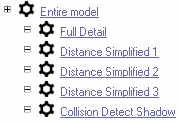
The multi-level detail model above could easily be generated by following the following steps:
- Create the model in full detail.
- Create folders to represent your various detail levels. The Polygon Group and Representation structure for each folder should mimic the Polygon Group and Representation structure for your full detail model.
- Copy-paste polygons from your full-detail model into the polygon groups under the second-highest detail level folder.
- Hide the full detail model by right-clicking the 'Full Detail' folder and selecting 'Hide All Polygon Groups'.
- Simplify the polygons in each polygon group in the simplified detail folder. The fastest way to do this is to use the Polygon Reduction function in the Toolbox Window.
- Repeat from step 3 to produce increasingly simple versions of the model. You could decide to use the simplest version of the model for collision detection.

Object Browser
Using Representations